Here is a 90 second video that shows you how to claim a visit. The text version is below.
Once you’re in the available tab, you can claim or request any job you want to do.
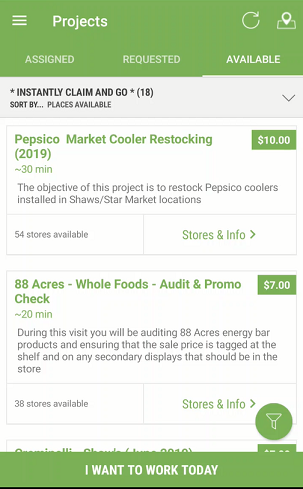
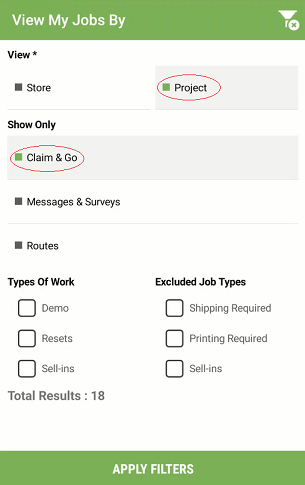
If you’re looking for jobs to do in that instant, go to the filters icon on the bottom right, and click on it. Once you’re in the filters page, select Project and Claim & Go, and hit apply filters.
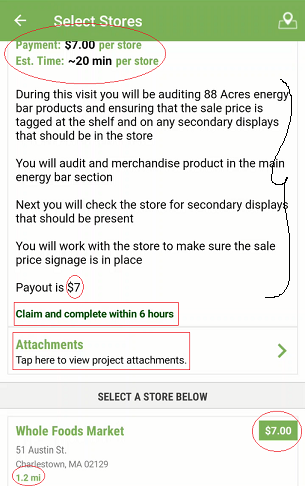
Once you’ve filtered your view, you can select any job to read the project details. This is extremely important and the details tell you what the job requirements and objectives are. It’ll tell you how long it’ll take you to complete the project, the payout, the attachment you will have to print out before your visit etc. As you scroll up, the available stores will display the distance from your current location as well.
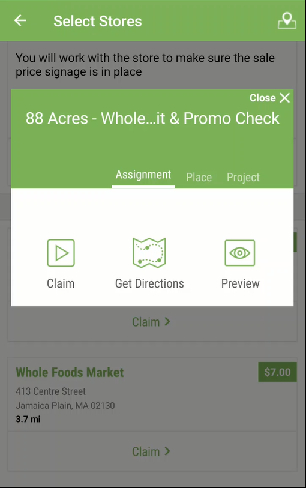
Once you’ve checked the project details, and store details. You can select Claim. When you select claim, you will get three options, to claim directly, preview the project, and get directions from your location.
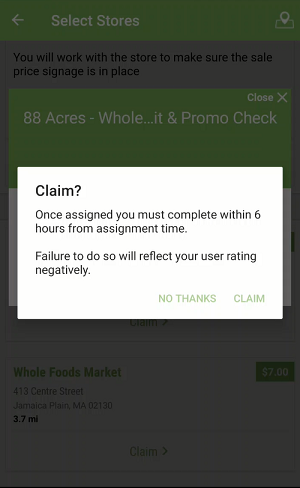
If you’re all set, and want to go ahead and claim it, there will be a reminder message letting you know that you have 6 hours to complete the job. If you are positive that you can, go ahead and claim the job.
If you have any questions, please submit a request.
Comments
0 comments
Article is closed for comments.